FAQs
View entire FAQ in full Up to table of contentsInstallation
What are PMV, ADT and Vision?
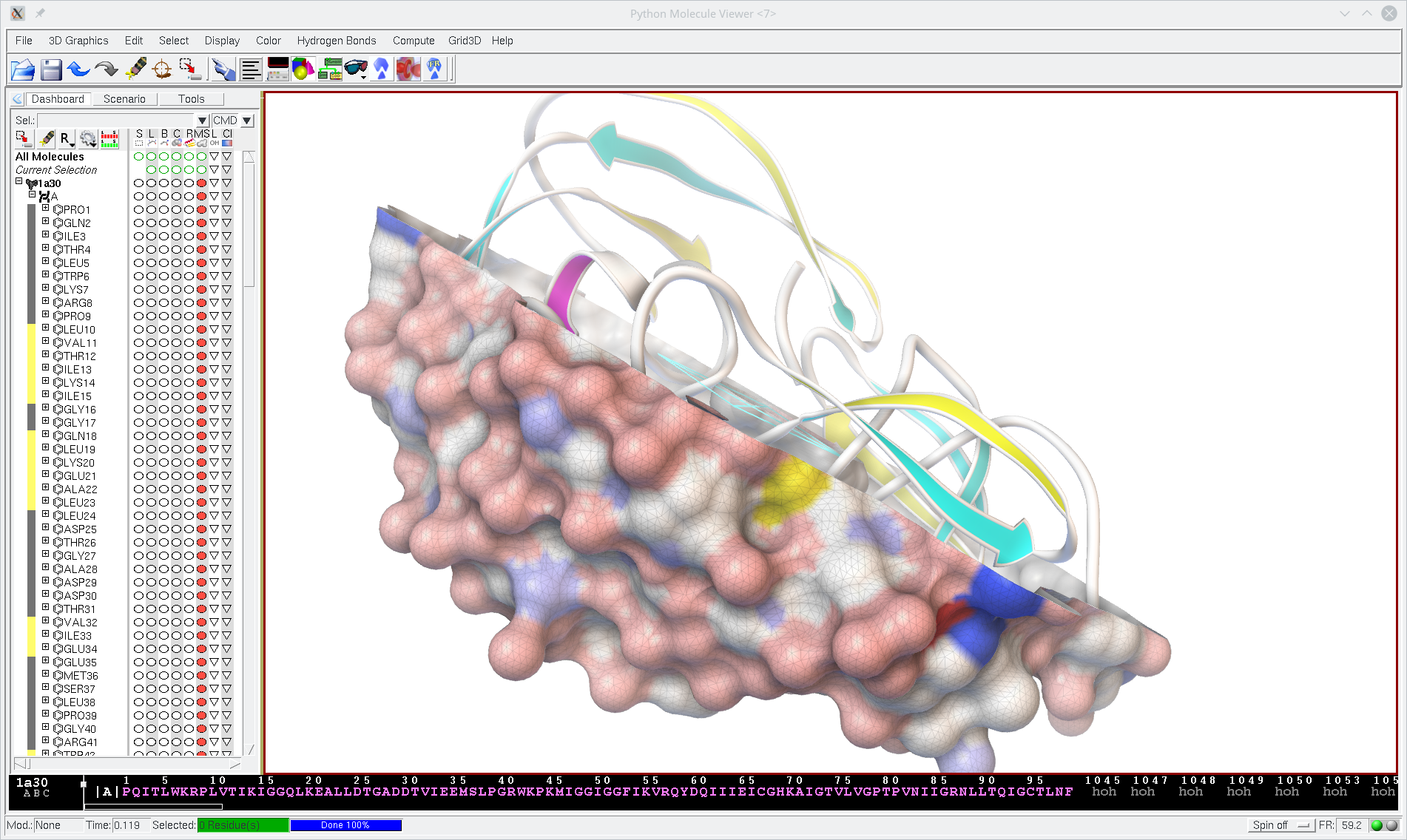
PMV is the Python Molecule Viewer, which allows one to view molecules and rotate them in 3D. Molecules can be colored and rendered in various ways, including as secondary structure ribbons or as molecular surfaces. PMV has a sophisticated selection mechanism based on its four level hierarchical data structure: Molecules are at the top and contain Chains, which contain Residues, which consist of Atoms. PMV is written in Python, an interpreted, object-oriented language that is easy to learn. While the the user accesses PMV commands via the menus of its Graphical User Interface, PMV records these operations in a file called 'mvAll.log.py'. This log file is a pure Python script which can be edited and/or sourced at a later time, to re-do these earlier operations. PMV also offers an extremely useful 'Undo' command for most operations.
ADT,
also known as AutoDockTools, consists of 5 specialized modules for PMV, so learning about PMV helps to understand
what is possible with ADT. Take a look at both the ADT Tutorial
and PMV
Tutorial. ADT is an easy-to-use graphical front-end to the
automated docking software packages AutoDock and AutoGrid. ADT provides menus to:
- set up a ligand (the 'moving' molecule to be docked) and write out a PDBQ file;
- set up a macromolecule (the 'fixed' molecule being docked to) and output a PDBQS file with solvation parameters;
- assign Kollman United Atom charged to a protein or peptide, or DNA or RNA;
- compute Gasteiger PEOE partial charges for small molecules or cofactors;
- add polar hydrogens, or 'merge' non-polar hydrogens;
- set up a grid box for atomic affinity grid maps and electrostatic potential maps around the target macromolecule;
- set various docking parameters;
- write GPF and DPF files (grid parameter and docking parameter files);
- launch AutoDock and AutoGrid calculations;
- read in DLG files (docking log files) and visualize AutoDock results;
- visualize grid maps by isocontouring them in 3D(using isocountouring library developed in Chandrajit Bajaj's group at UT Austin - part of UTpackages - http://ccvweb.csres.utexas.edu/software ); and also
- cluster and re-cluster docking results in various ways.
VISION, or the Visual Programming Environment, is
an advanced environment in which Python-based object-oriented components can
be
dragged-and-dropped and 'wired' together to create new applications. It
consists of various libraries of 'nodes', each node performing some
well-defined computational task. Molecules can be read in, for example,
using one of the 'MolKit' library's nodes.
What's included with MGLtools?
What's included and what's not in the downloads?
The following is a list of Python packages included with MGLTools:
| Platform Independent | Platform Dependent |
|---|---|
| AutoDockTools | bhtree |
| DejaVu | binaries† |
| mglutil | geomutils |
| MolKit | gle |
| NetworkEditor | mslib |
| Pmv | Numeric* |
| Pmw* | opengltk |
| PyAutoDock | PIL* |
| PyBabel | pyglf* |
| symserv | PyXML* |
| ViewerFramework | QSlimLib* |
| Vision | sff |
| Volume | stride* |
| ZSI* | UTpackages* |
*denotes third party packages.
Binaries of platform dependent packages are included in the
installers for all supported platforms. Linux and Mac installers
also include a pre-compiled Python interpreter. Windows installer
downloads and installs Python, if necessary.
Please note that AutoDock and AutoGrid are not included - they are distributed via a separate mechanism. Please visit autodock.scripps.edu for details.
This FAQ applies to: 1.5.0
Where are MGLTools packages stored?
Location of the MGLToolsPckgs on various platforms.
MGLToolsPckgs is a folder used to store MGLTools packages. It
is located in MGLTools installation folder (<%InstallDir%>)
that depends on the platform and on the version of MGLTools. The following are default locations for <%InstallDir%>:
Linux - /usr/local/MGLTools-1.5.0 if you install as root or $HOME/MGLTools-1.5.0 if you install as a regular user.
Mac OS X- /Library/MGLTools/1.5.0
Windows- C:\Program Files\MGLTools 1.5.0
If you installed MGLTools from source, MGLToolsPckgs is located in site-packages folder of your Python installation. See the README file provided in the source tarball for more details.
This FAQ applies to: 1.5.0
freeglut ERROR:
PMV or ADT failed to start on Linux and you see the following error message
"freeglut ERROR: Function
There is a bug in freeglut-2.4.0-4 that causes this
problem. Please replace freeglut with version 2.2.0-1. The following
commands should do this.
wget http://jumpgate.homelinux.net/random/freeglut-fedora/freeglut-devel-2.2.0-1.i386.rpm
rpm -i --nodeps --force freeglut-2.2.0-1.i386.rpm
rpm -i --nodeps --force freeglut-devel-2.2.0-1.i386.rpm
See also http://www.fltk.org/newsgroups.php?s568+gfltk.opengl+v573+T0
How to set up PYTHONPATH on Windows?
MGLTools is not installed in Lib\site-packages folder of your Python installation and you are getting an ImportError.
ImportError: No module named Pmv, you'll need to set PYTHONPATH Environment
Variable to point to the location of MGLToolsPckgs. To set the PYTHONPATH variable:
- Go to Control Panel -> System-> Advanced.
- Click 'Environment Variables' button.
- In the 'System Variables' panel that
appears, click New and enter PYTHONPATH in the
'Variable Name' field. In the 'Variable Value' field
enter path to MGLToolsPckgs (e.g. C:\Program Files\MGLTools-1.4.5\MGLToolsPckgs).
Note that our standalone installer creates/modifies C:\Python24\Lib\sitecustomize.py to include the latest version of MGLToolsPckgs in your path.
This FAQ applies to: 1.4.5
ImportError: No module named Foo
I tried to use the prepare_ligand.py script, but got ImportError: No module named MolKit
This ImportError means that Python interpreter can't find appropriate packages from MGLTools. Please run these scripts using pythonsh (e.g. pythonsh prepare_ligand.py) located in:
Linux $MGL_ROOT/bin, where $MGL_ROOT is either /usr/local/MGLTools-1.5.2 or $HOME/MGLTools-1.5.2
Mac OS X
/Library/MGLTools/1.5.2/bin
Windows users: our installer creates/modifies C:\Python25\Lib\sitecustomize.py and you should be able to run prepare_ligand.py as follows:
C:\Python25\python.exe prepare_ligand.py
Python Path
pythonsh is a shell script that sets appropriate environment variables, such as
PYTHONPATH, before starting python. If you are planning to use MGLTools for
virtual screening only, i.e. no GUI mode, then you need to build or
compile MGLTools, since only platform independent code is used for VS tutorial.
You do need, however, numpy installed on your system. Here are steps needed to make sure that you can import all MGLTools packages.
- Download any of the binary tarballs, e.g.
-
Unpack MGLToolsPckgs
tar -xzvf mgltools_i86Linux2_1.5.2.tar.gz
cd mgltools_i86Linux2_1.5.2
tar -xzvf MGLToolsPckgs.tar.gz -
Set PYTHONPATH environment variable.
setenv PYTHONPATH `pwd`/MGLToolsPckgs
How to set up PYTHONPATH on Windows?
http://mgltools.scripps.edu/downloads/tars/releases/REL1.5.2/mgltools_i86Linux2_1.5.2.tar.gz
Update: http://eflorenzano.com/blog/post/first-two-django-screencasts shows another method using symbolic links.
See also: http://autodock.scripps.edu/faqs-help/how-to/how-to-setup-adt-scripts
This FAQ applies to: 1.5.2
Could not find MSMS library
I get this warning message; how to fix this problem?
If you get the following warning message when starting PMV or ADT,
it probably means that MSMS library is not installed.
Warning (from warnings module):In order to install MSMS library you need to agree with MSLIB License Agreement when installing MGLTools (1.4.3 and above). If you disagree with the license, MSLIB will not be installed and you can safely ignore this warnings.
File
"/soft/linux/pkg/MGLTools-1.4.1/share/lib/python2.4/site-packages/Pmv/VisionInterface/PmvNodes.py",
line 481
warnings.warn("could not find MSMS library")
UserWarning: could not find MSMS library
Problem running APBS?
Missing libraries - Linux.
-
Case 1- libreadline: you are getting the following error message while running APBS:
apbs: error while loading shared libraries: libreadline.so.4: cannot open shared object file: No such file or directory
To fix this problem runln -s /lib/libreadline.so.5.1 /lib/libreadline.so.4as root.
- Case 2 - libg2c:
apbs: error while loading shared libraries: libg2c.so.0: cannot open shared object file: No such file or directory
Solution: install g77.
You can also download and build APBS from source - apbs.sourceforge.net. If
you copy resulting executable to MGLToolsPckgs/binaries folder of your
MGLTools installation, PMV will use that executable instead of the one
shipped with MGLTools.
X Error on startup - Mac OS X
ADT/PMV fails to start on Mac.
Case 1 - X11 is not installed.
X11 is a prerequisite for ADT/PMV and Vision. X11 can typically be
found on the Mac OS X installation DVD. Scroll down in the 'Mac OS X
Install disc' window and locate "Optional Installs". Double click to
start the Installer, at the 'Installation Type' stage open the
Applications category, select X11 and proceed. Once installed, be sure
to run Software Update to obtain the latest version of X11.
- http://developer.apple.com/opensource/tools/runningx11.html
- http://cjmart.in/2006/12/01/install-x11-on-tiger-without-the-tiger-install-dvd
Case 2 - BasAllloc error mesassage.
X Error of failed request: BadAlloc (insufficient resources for operation)Please disable stereo visuals (see below), quit X11 and run ADT/PMV again:
Major opcode of failed request: 150 (GLX)
Minor opcode of failed request: 3 (X_GLXCreateContext)
Serial number of failed request: 1758
Current serial number in output stream: 1759
$ defaults write com.apple.x11 enable_stereo -bool false
OpenGL misconfiguration detected on Linux.
Why I'm getting this message and how to fix it?
adt, pmv, vision and pythonsh scripts in the bin folder check to see
if /usr/lib/libGL.so.1 and /usr/X11R6/lib/libGL.so.1 are the same.
These files contain your OpenGL library/driver and here is the relevant
part in our scripts:
case "`uname -s`" in
...
Linux)
p0="/usr/lib/libGL.so.1"
p1="/usr/X11R6/lib/libGL.so.1"
if [ -f "$p0" -a -f "$p1" ]
then
ls0=`ls -Ll "$p0" | sed 's,/.*,,'`
ls1=`ls -Ll "$p1" | sed 's,/.*,,'`
if [ "$ls0" != "$ls1" ]
then
echo "OpenGL misconfiguration detected."
echo "Please reinstall graphics driver."
#exit 1
fi
fi
...
I've commented exit part because, in most cases, adt, pmv and
vision can run without any problem, even when the last if condition is
true. For instance, /usr/lib/libGL.so.1 might point to a more recent
version of OpenGL library, which should not stop you from running adt,
pmv or vision. The case when exit is really needed is when
/usr/lib/libGL.so gets corrupted. In this case, your X server can crash
when calling pmv or any other application that calls OpenGL (e.g.
glxinfo). If this is the case, reinstall graphics driver.
The following page list startup problems for Chimera on i386 Linux (TclError: Togl: couldn't get visual and OpenGL misconfiguration detected) that should be useful for MGLTools users as well: http://www.cgl.ucsf.edu/chimera/1.2470/linux.html
This FAQ applies to: 1.5.0
Problem with undefined symbol: glBlendEquationSeparateATI?
You have build MGLTools on Linux and you are getting this message.
A quick fix for this problem is to remove/comment
glBlendEquationSeparateATI from your /usr/include/GL/gl.h and rebuild
opengltk package. Please see Bug 834.