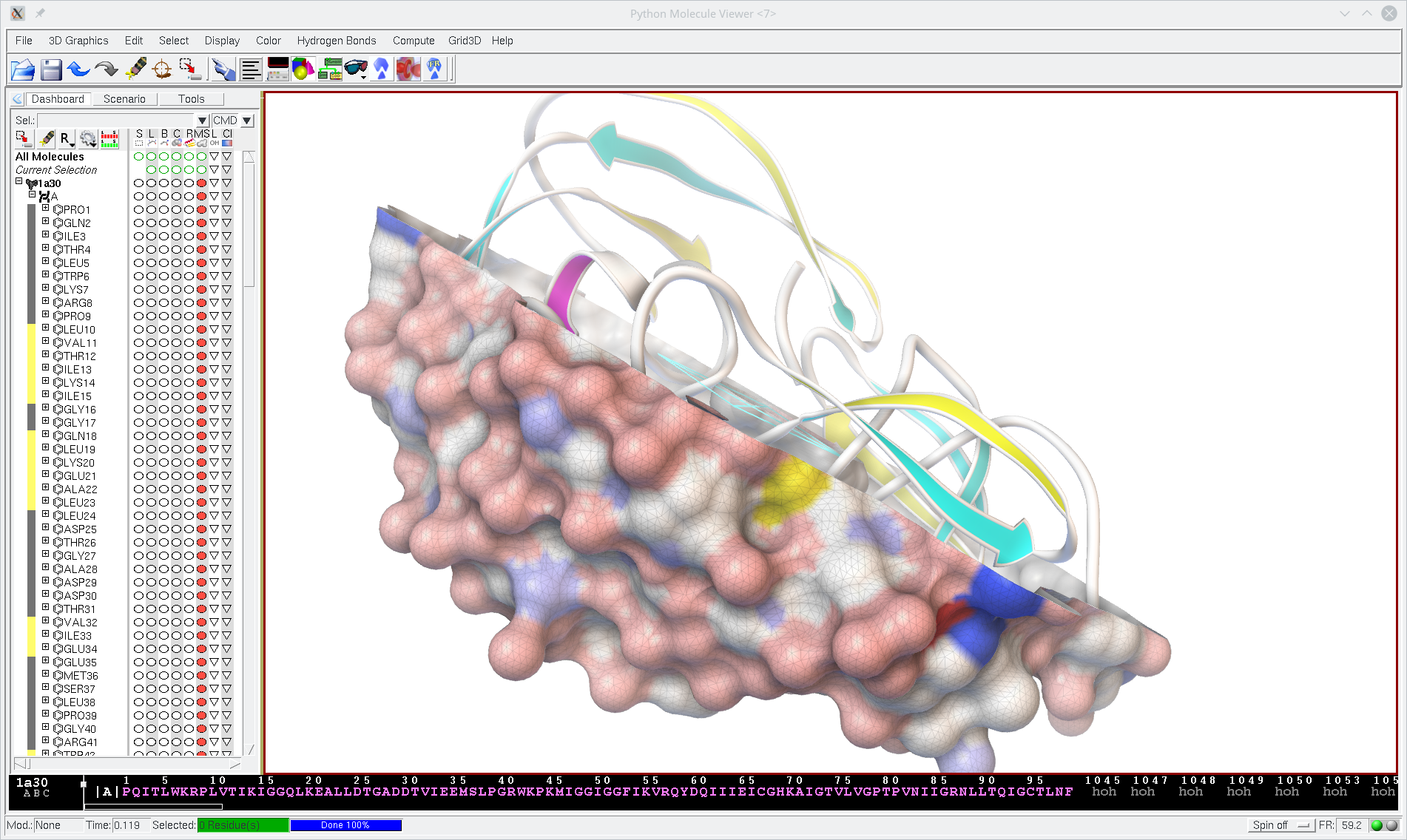
Molecular Electrostatics
Note: This is the print view with all the tutorial pages on one page. The paginated version is available here, if you prefer that.
Quickstart
PMV uses Adaptive Poisson Boltzmann Solver
(APBS) to calculate electrostatic properties for molecules. APBS
binaries are included with MGLTools, so there is no need to download
and install APBS separately. We do need, however, molecular
structure as an input. I've included in this tutorial HIS.pdb, that
contains 3D coordinates for histidine. You can use any other molecule you are interested.
Note, current version of pdb2pqr included with MGLTools fails to conver pdb with a single residue. I've created HIS.pqr using procedure described here.
Here are steps need to run and visualize the results:
-
Read HIS.pdb:
File→Read Moleculeselect HIS.pdb and click on Open. -
Run APBS:
Compute→Electrostatics→Compute Potential using APBSWait until the calculation is complete and you will see this message: “Thanks for using APBS”. Click on OK. - Color molecular surface by APBS Potential:
Compute→Electrostatics→Map Potential to Surfaceand click OK. This calculates molecular surface for histidine and displays it colored by the electrostatic potential The Color Map Legend shows correspondence between colors and electrostatic potential.
Potential Isocontours
Undo previous command using either Edit → Undo or by clicking on
Undo icon
on the Tools bar. Displaying isocontours of an electrostatic potential is another useful
way for visualizing volumetric data produced by APBS. To do that,
click on Compute → Electrostatics → Isocontour Potential.
This opens the following widget that allows to change isovalues,
hide one of the isocontours or animate by running through different
isovalues.

An example of the electrostatic potential around histidine residue visualized as isocontours at +1.0 kT/e (blue) and -1.0 kT/e (red)
If you see gray opaque isocontour instead of the red transparent, this probably means that your camera is floating (
). In order to fix this, click on the DejaVu GUI icon on the Toolbar (
), then click on the Light button underneath Properties and uncheck the
checkbox next to "Two Side".
APBS Setup widget
Open APBS Setup widget: Compute → Electrostatics → Setup.
- Calculation - used for setting up Calculation type, Boundary conditions, selecting molecules, specifying the output, etc..
- Grid – used for setting up grid dimensions.
- Physics - contains protein and solvent dielectric constant, etc.
- Web Services - used for running APBS remotely.
When Calculate type is set to Solvation energy, APBS calculates total
energy of a molecule twice, once in a solvent (Esolvent) and once in a
vacuum (Evacuum). The Solvation energy is outputted as Esolvent -
Evacuum.
User can also choose to calculate binding energy between two molecules
by setting Calculation type to Binding energy, in which case s/he
should provide Molecule1, Molecule2 and the Complex between these two
molecules. APBS then calculates the energy for Molecule1 (E1),
Molecule2 (E2) and Complex (E3), and outputs the binding energy as E3 -
E2- E1.
| Before finishing, have a look at the parameters in the Physics tab that can be changed as needed. |
Add-on
As described in Part 2 of this tutorial, we can animate isocontours
of an electrostatic potential. Here, I'll describe how to save images
from this animation that you can later use for presentation or to embed in a website. Click on the Vision icon
located on the Toolbar. Use File → Close to close APBSIsoContour network, if present. Download attached APBSIsoContour_pmvnet.py and open this with Vision. This is modified version of the nework with added Grab Image and Save
Image nodes from Imaging library. Make directory called foo where we can store saved images. Click on Compute → Electrostatics → Isocontour Potential and press Animate button. This should create a bunch of images under foo. Now you can use ImageMagick or any other software to make animation from these images. With ImageMagick installed you can simply type animate foo/*.png and save as gif.