Homepage Title
NOTE: MAC users please note that MGLTools is NOT working under the Catalina OS. We strongly advise to refrain from upgrading your OS to Catalina. We will send email to the mailing list if and when MGLTools or an alternative will be available for this version of Mac OS. If you already are using Catalina, we recommend install VirtualBox and running MGLtools inside the virtual box.
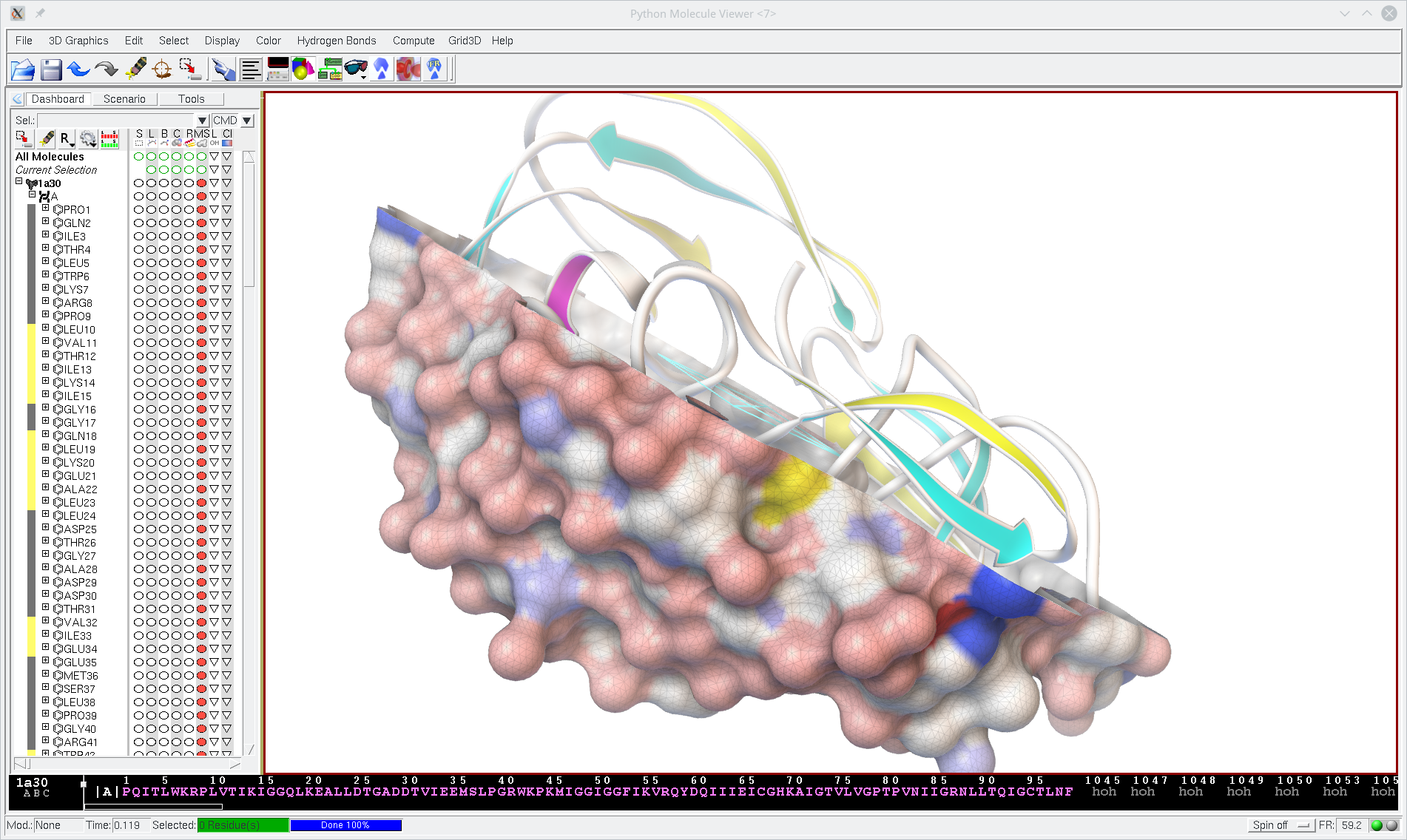
Thew MGLTools software suite was developed in the Sanner lab at the Center for Computational Structural Biology (CCRB) formerly known as the Molecular Graphics Laboratory (MGL) of The Scripps Research Institute for visualization and analysis of molecular structures. Navigation portlet on the left has links to downloads, screenshots, documentation section of this website where you can find more information about MGLTools. MGLTools comprises:
- the Python Molecular Viewer (PMV), a general purpose molecular viewer
- AutoDockTools (ADT) a set of PMV commands specifically developed to support AutoDock users
- Vision, a visual programing environment.
These software tools are highly integrated and based on reusable software components implemented in Python and C++ (With Python bindings). The underlying Graphical Tool Kit is Tk.
While still widely used, we have shifting the development of our Graphical User Interfaces to Qt and we will gradually replace these tools with Qt-based versions. The first such new tools is AGFR, a tool for specifying, computing and visualizing AutoDock affinity maps.
The latest version of MGLtools is 1.5.7 which provides:
- a redesigned dashboard widget
- a sequence viewer widget
- performance optimizations
- new commands for superimposition and RMSD calculations
MSMS
MSMS can be downloaded independently of mgltools.